

User Guide
Through practical examples, we demonstrate the following:
- How to enter addition / subtraction / multiplication / division?
- How to enter parentheses?
- How to enter fractions?
- How to enter exponents?
Before that, here is some general information about input:
- When entering problems, you can use your own keyboard as well as the Akriel input panel. The panel remains in the lower half of the screen throughout the input process.
- You can move within the entered expression using the arrow keys (up, down, right, left) or the mouse.
- You can delete using both the Del and Backspace keys. Before pressing Del, place the cursor in front of the character/expression you wish to delete; before pressing Backspace, place it behind.
- After entering the desired problem, if you would like Akriel to solve it, simply press Enter or click the green “Solve” button on the input panel.
- If you would like to enter a new example after the solution, just click into the problem field — which is located above the solution steps — and enter the new example. If you do not want to enter a completely new problem but only modify the previously entered one (or one selected from Akriel’s online example collection), you can do so. Add to it or delete parts of it, then press Enter again. Feel free to experiment!
How to enter addition / subtraction / multiplication / division?
First example:
To enter the formula, simply type the numbers, letters, and operation symbols one after another.
In some cases, it is not necessary to include the multiplication signs explicitly, as illustrated in the second example:
To enter the formula, simply type the numbers, letters, and operation symbols corresponding to the problem in sequence. You can do this using your keyboard or the input panel. If the multiplication sign appears in the formula, it can also be entered:
How to enter parentheses?
Example:
1.) Basic input mode: first enter the expression “2a”, then
- press the left parenthesis key “(” on your keyboard, or
- press the “parenthesis input button” on the input panel:

Whichever you choose, you will get:

The cursor will be inside the parentheses at the question mark, so simply type the expression “x-y” there, then move the cursor to the right to exit the parentheses, and you will get:

Proceed similarly when entering the other term, and the formula is complete.
2.) Selection input mode: if you type the expression from the example without parentheses, the formula will look like this:
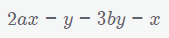
You can add the parentheses afterward around the appropriate expressions using selection input mode. First, select the first expression to be enclosed with the mouse:
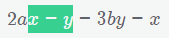
Then press the “insert parentheses” button on the input panel:

After pressing the button, parentheses will be placed around the selected expression:

Proceed similarly with the other term.
Special addition:
You can also enter nested parenthetical expressions.
Example:

This formula contains four parenthetical expressions nested within each other (the last two are not nested relative to each other, only relative to the first two). Therefore, the formula can be created through four parenthesis-creation phases:
- 1st phase: enter “3a -”, then insert a parenthesis!

- 2nd phase: inside the parentheses, type “2c -”, then insert another parenthesis!
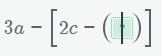
- 3rd phase: inside the parentheses, type “6a -”, then insert another parenthesis!
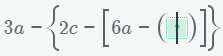
- 4th phase: inside the parentheses, type “c - b”, move the cursor out of the parentheses to the right, then enter “+ c +”, and finally insert another parenthesis!

Now you only need to fill in the inside of the parentheses.
How to enter fractions?
Example:
1.) Basic input mode:
First enter the beginning of the formula, “3a +”. Then
- press the slash “/” key on your numeric keyboard, or
- press the “fraction input button” on the input panel:

Whichever you choose, you will get:

You have created the fraction structure; now fill in the numerator and denominator. The cursor automatically jumps to the numerator, so start there, then press the down arrow key to move to the denominator and continue. After that, use the right arrow key to exit the fraction:
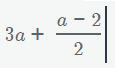
The first fraction is now complete; repeat the same process to enter the second fraction.
2.) Selection input mode:
If you want to convert certain parts of an already entered expression into a fraction afterward, you can do so using selection mode. For example, this could be the starting expression:

Now select the appropriate part of the formula with the mouse:
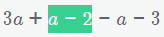
Then press the “place into numerator” button on the input panel:

The button will create a fraction and place the selected expression into its numerator:
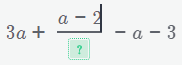
After filling in the denominator and performing the same procedure on the other term, you can obtain the required expression.
You can also place the selected expression into the denominator of a fraction. For example, if after the previous selection you press the “place into denominator” button:
you will get the following expression:
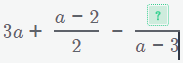
In this case, you would need to fill in the numerator afterward.
Special addition:
You can also enter complex (stacked) fractions.
Example:
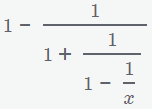
Since this formula contains three fractions nested within each other, it can be created in three fraction-creation phases:
- 1st phase: after entering “1 -”, insert a fraction!

- 2nd phase: after filling in the numerator of the fraction, in the denominator enter “1 +”, then insert another fraction!
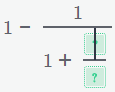
- 3rd phase: after filling in the numerator of the fraction, in the denominator enter “1 -”, then insert another fraction!
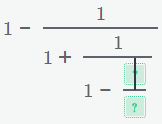
Finally, you only need to fill in the numerator and denominator of the innermost fraction.
How to enter exponents?
When entering exponents in basic input mode, you can choose between two methods.
First example:

Basic input mode:
1.) The “jump to exponent” method:
First enter the beginning of the formula, “16 -”, and type the base of the power, that is, c. At this point you have:

Now
- press the right “Alt Gr” key on your keyboard, or
- press the “exponent input button” on the input panel:

Whichever you choose, you will get:

The exponent field appears; now simply fill it in.
2.) The “full power” method:
First enter “16 -” from the beginning of the formula, but do not type the base yet. Instead, press “Alt Gr” or the previously shown “exponent input button” immediately, and you will get:
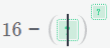
The complete power structure appears; you only need to fill in the base and the exponent. After filling in the base, move the cursor to the right or click with the mouse to jump to the exponent.
Second example:
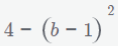
1.) Basic input mode:
a.) The “jump to exponent” method:
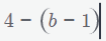
First enter “4 -” from the beginning of the formula, and type the parenthetical base, that is, “(b-1)”, then move the cursor to the right to exit the parentheses. At this point you have:
If you now press “Alt Gr” or the “exponent input button”, you create the exponent field, which only needs to be filled in:
b.) The “full power” method:
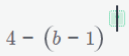
Enter “4 -” from the beginning of the formula, and immediately press “Alt Gr” or the “exponent input button”. You will get:

Akriel has been designed so that if the base of a power is a multi-term expression, it automatically places parentheses around it. Therefore, if you type “b-1” as the base, parentheses will automatically appear around the expression:
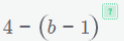
Now you only need to fill in the exponent.
Akriel also automatically places parentheses around the base if it is:
- a product,
- a fraction,
- a power,
- any expression with a negative sign.
Parentheses are not added only when they are unnecessary — that is, if the base is a single number or a single variable (as in the first example).
2.) Selection input mode:
If you want to convert part of an already entered expression into a power afterward, you can do so using selection mode. For example, this could be the starting expression:

Select the appropriate part of the formula:

Then press the “place into base” button on the input panel:

The button creates a power and places the selected expression into its base:
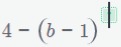
Based on the rules described in Basic input mode, Akriel immediately adds parentheses around the base since it is a multi-term expression. You only need to fill in the exponent.
Extra addition to Selection input mode
In Akriel, you can copy, cut, and paste formulas just as you do with text in Word. Therefore, if within a problem there are two expressions that are almost the same, differing only slightly, you can speed up the input using the copy-and-paste method.
Example:

The accelerated input method:
- 1. First, enter the initial multi-term expression using the previously described parenthesis, fraction, and exponent input methods!
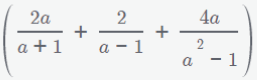
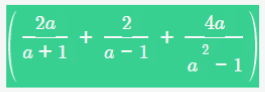
- 2. Now select the entire expression and press the “Ctrl + C” key combination!
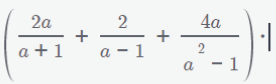
- 3. Then move the cursor to the right so that the selection disappears, and enter a multiplication sign!
- 4. Finally, press the “Ctrl + V” key combination to paste!

This way you have entered the second multi-term expression; now you only need to replace the second “+” sign with a “−” sign, and the required problem is complete.